How to add a new job application
Learn how to track a new job application in Traject. Keep your job search organized and never lose track of an opportunity.
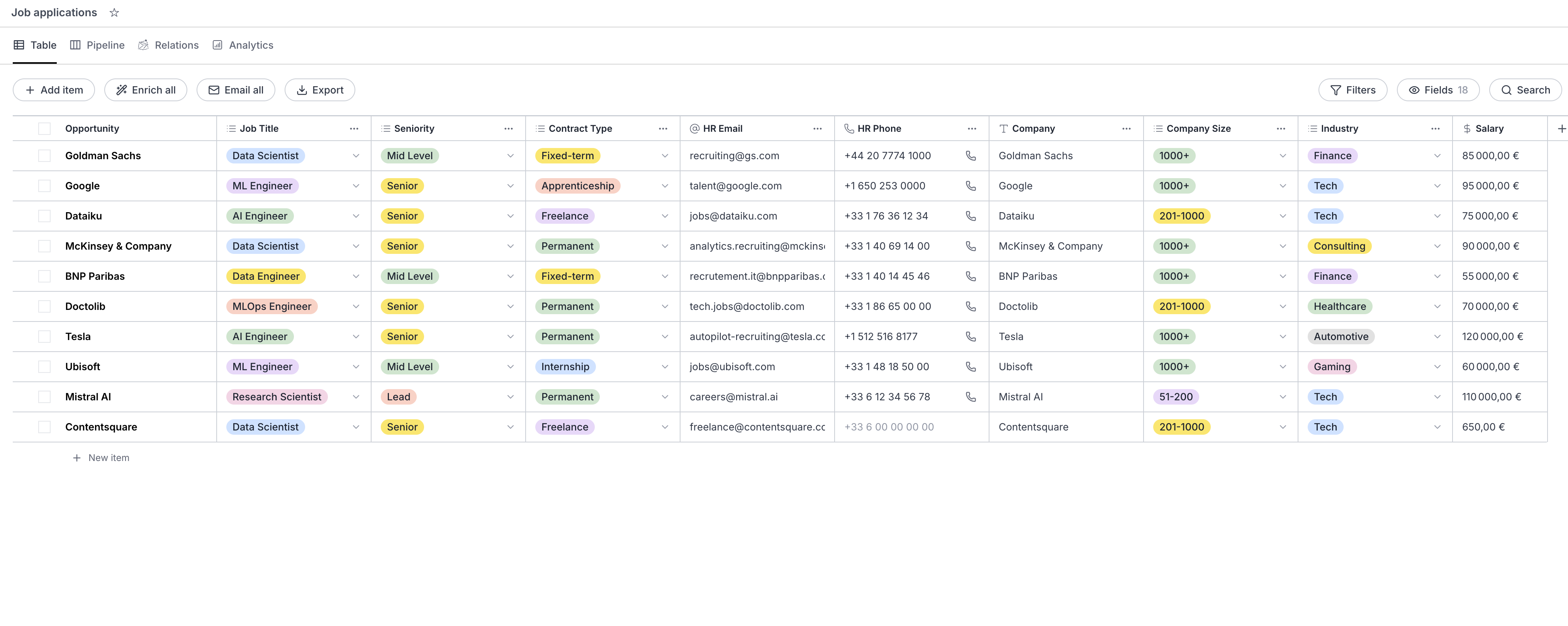
Navigate to Job Applications
From your dashboard, click on "Job Applications" in the left sidebar to access your applications tracker.
Click on "+ Add item"
Click the "+ Add item" button at the top left of the table to create a new job application entry.
Enter the company name
Type the name of the company you are applying to in the "Freelance" column. This will be your main identifier for this application.
Add your contact information
Fill in the "Email" and "Phone" fields with the recruiter or hiring manager contact details if you have them.
Select your expertise
Click on the "Expertise" dropdown and select the type of role you are applying for (Frontend, Backend, Data/AI, DevOps, etc.).
Choose the seniority level
Select the seniority level for this position: Junior, Mid Level, Senior, Lead, or Principal.
Enter the daily rate or salary
Fill in the "Daily Rate" field with the proposed compensation. This helps you track and compare offers later.
Set your availability status
Select your availability for this opportunity: Available, Partially Available, Soon Available, or Not Available.
Add location and remote preference
Enter the job location and select the remote work option: Full Remote, Hybrid, or On-site.
Set the application status
Choose the current status of your application: New, Qualified, In Mission, Proposed to Client, or Mission Ended.
Add the LinkedIn profile (optional)
Paste the LinkedIn URL of the company or recruiter for quick reference.
Your application is saved!
Your new job application is now tracked. You can see it in your table and update it anytime as the process evolves.
Ready to get started?
Create your free Traject account and start tracking your career today.
Try for free